
Backup and Restore
Backup and restore can be used to backup and restore databases. It uses native tools for the databases to backup and restore data.
💡Note: It requires support packages to be present in the system.
Backup
Backing up data is available either through the file menu or via the menu in the Toolbar > Databases > Backup.
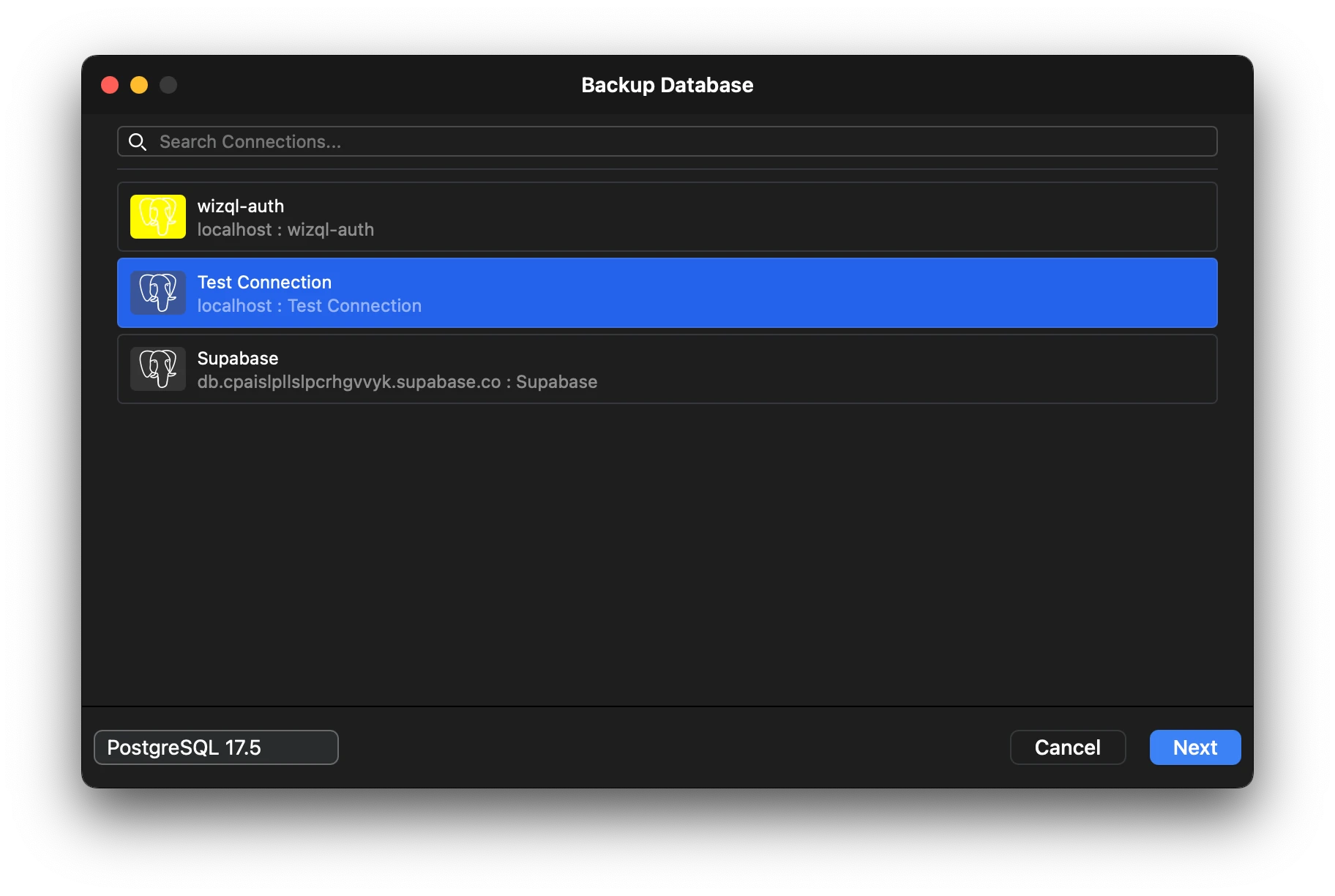
The backup screen opens a connection menu to connect to the target database. On selecting the connection, the application automatically tries to connect to the selected connection in order to fetch the databases that can be backed up.
Note: It is necessary to select a database to backup.
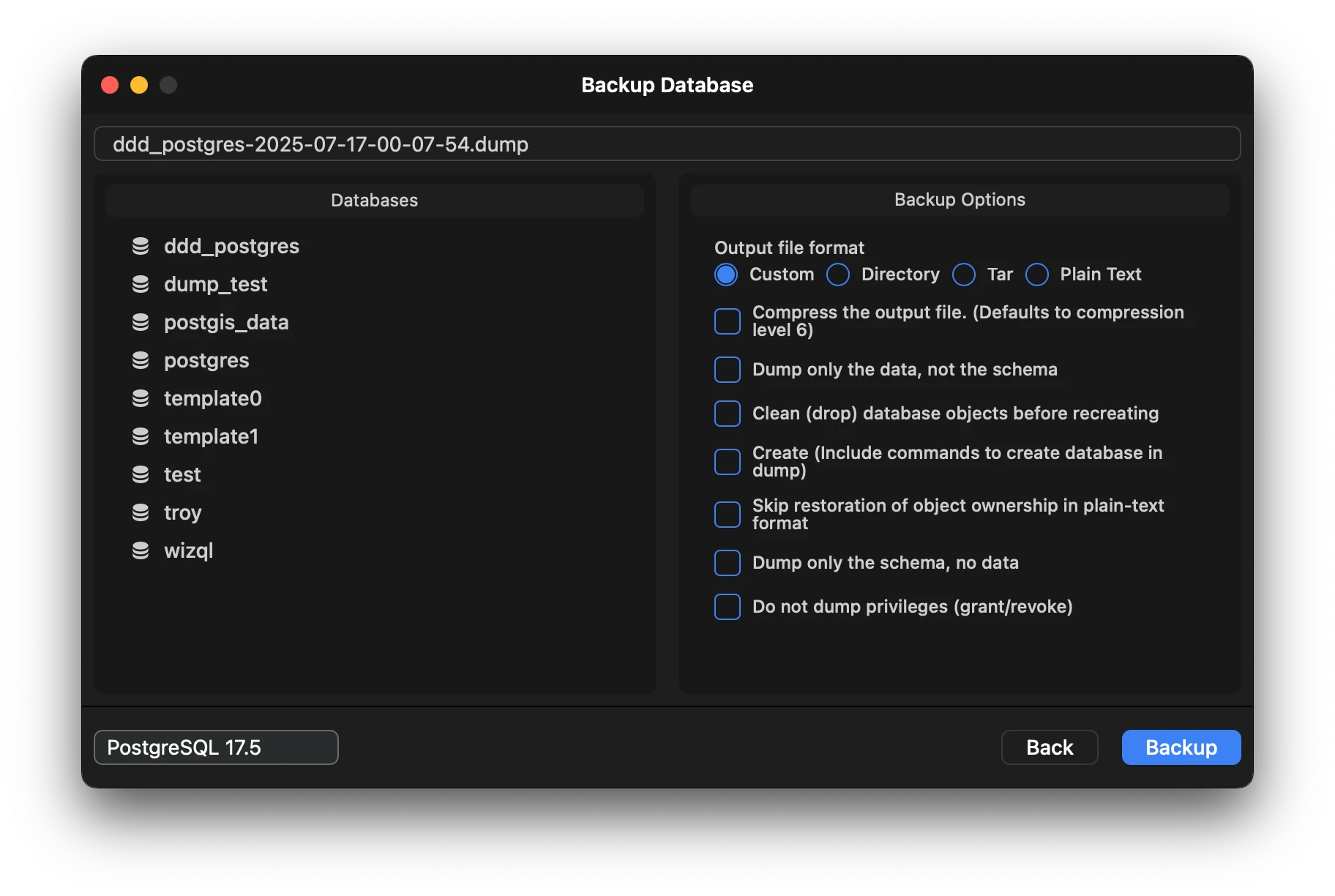
The backup window is divided into sections, on the left are the databases available and on the right are the options to apply to the backup.
The bottom left corner allows you to select the version of the backup tool.
Note: Always select the tool for your specific database version. Mismatched versions can create errors while backing up.
The filename of the backup can also be edited before saving.
The logs are displayed in a popup during the backup process in realtime.
Restore
Restoring data is available either through the file menu or via the menu in the Toolbar > Databases > Restore.
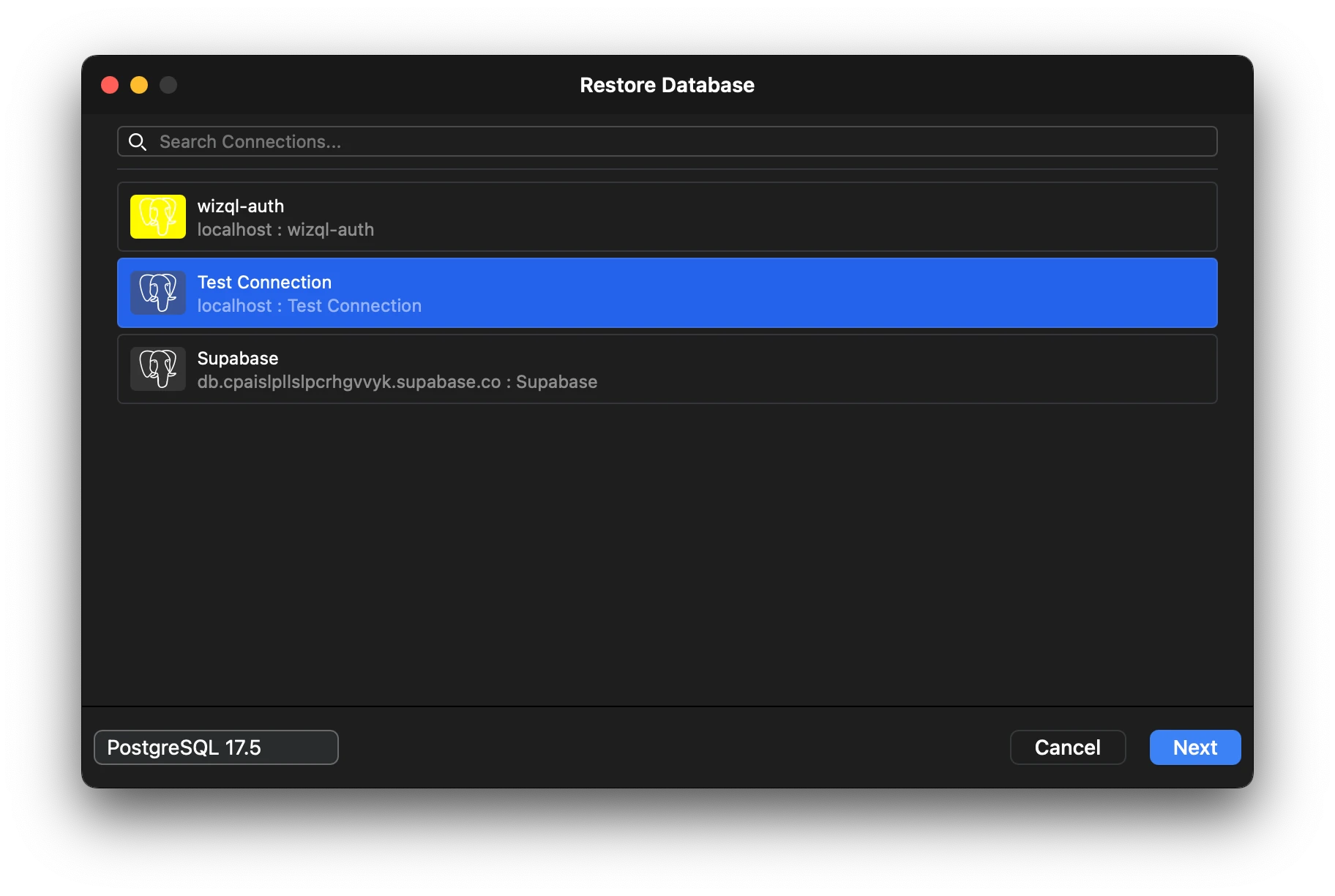
The restore screen opens a connection menu to connect to the target database. On selecting the connection, the application automatically tries to connect to the selected connection in order to restore a specific database.
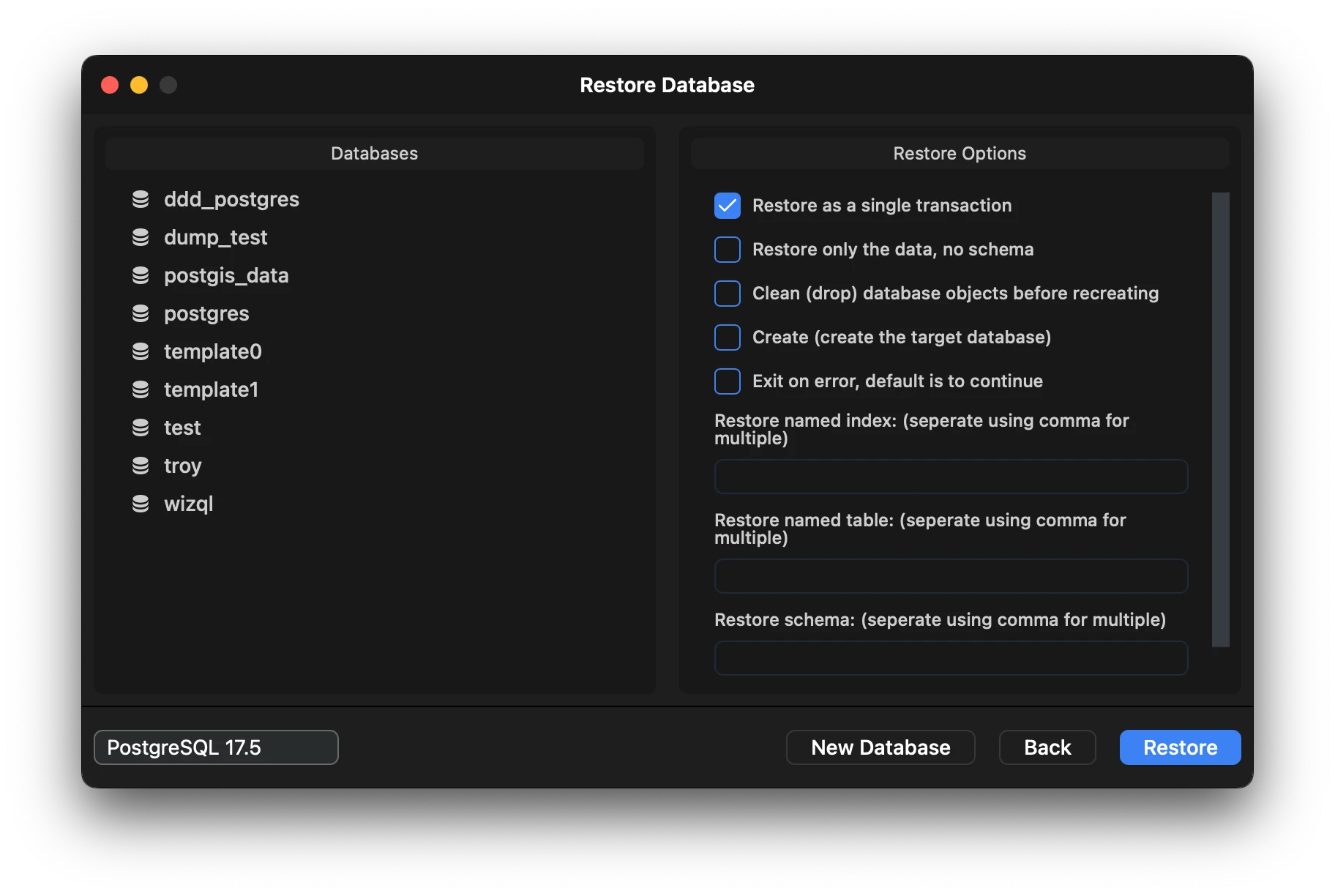
The restore window is divided into sections, on the left are the databases available and on the right are the options to apply to the restore tool.
The bottom left corner allows you to select the version of the restore tool.
A new database can also be created before restoring.
Note: Always select the tool for your specific database version. Mismatched versions can create errors while restoring.
The logs are displayed in a popup during the restore process in realtime.