
Import and Export
Importing and exporting data is a breeze when using WizQl.
Import
The application can import your data into the database using .csv, .sql, .dump(plain sql) and .json. Thus, covering all your data import needs.
There are many ways in which to import data.
- By using the menu bar:
File > Import - By using the context menu or the left pane.
On selecting import, a seperate window is opened, enabling you to continue working on your databases while the import continues in the background.
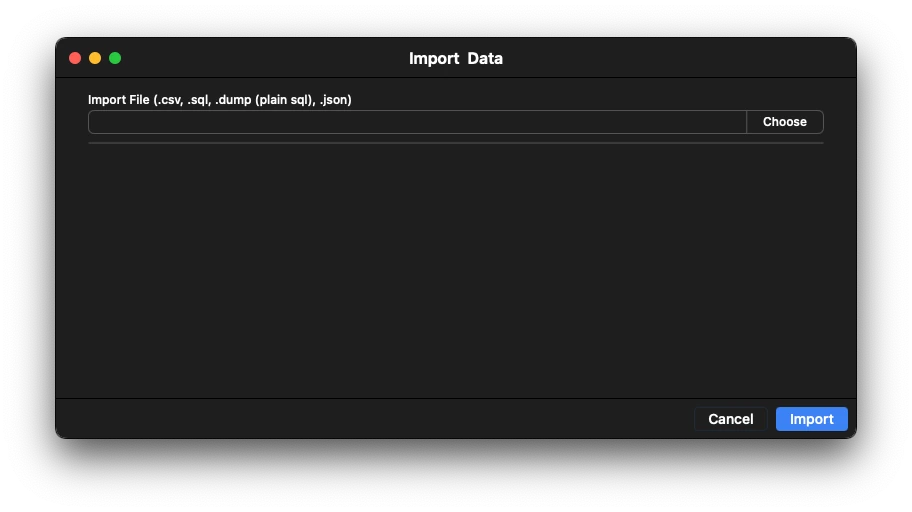
CSV
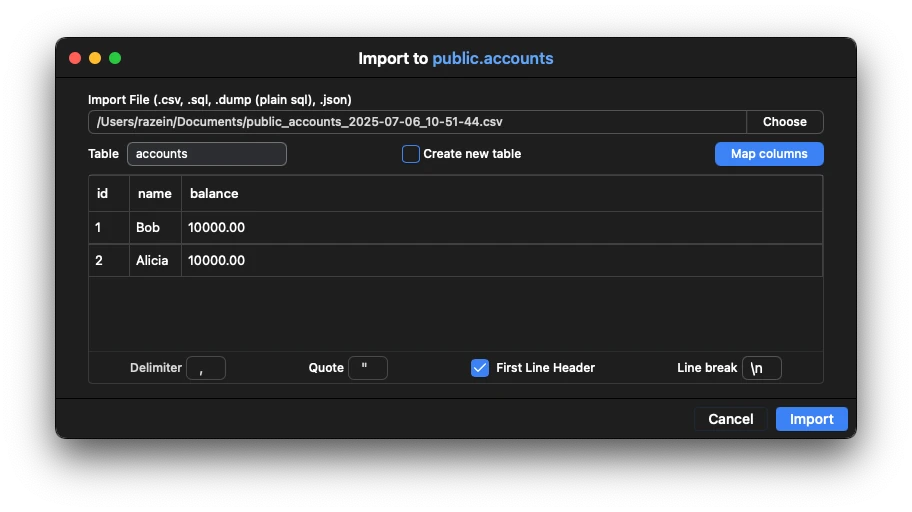
Importing csv allows you to use data from other platforms. The csv import lets you choose the table in which to import the data to. If headers are provided in csv data, then the application automatically tries to map it to existing columns.
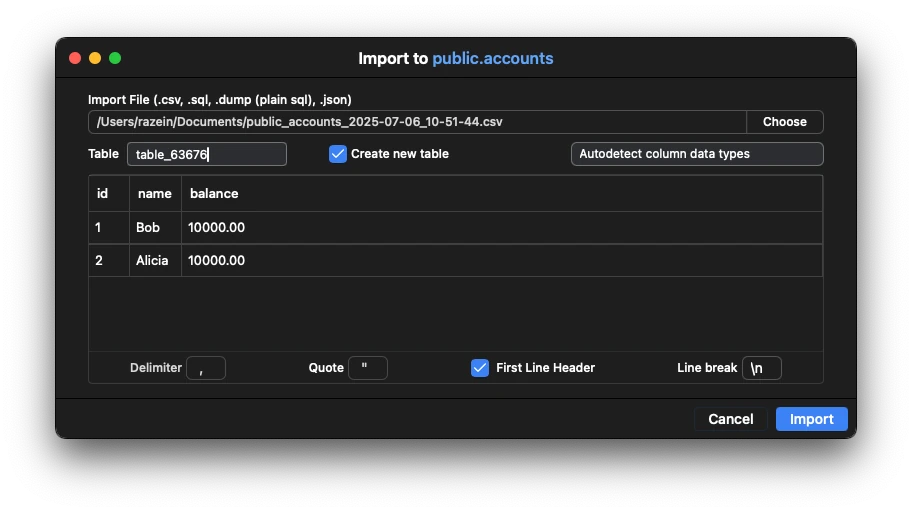
You can also choose to create a new table with the imported data rather than targeting an existing table.
Creating a new table creates a random table name (which can be edited) and gives you the option to try and parse the data to create columns data types or use all text types for data.
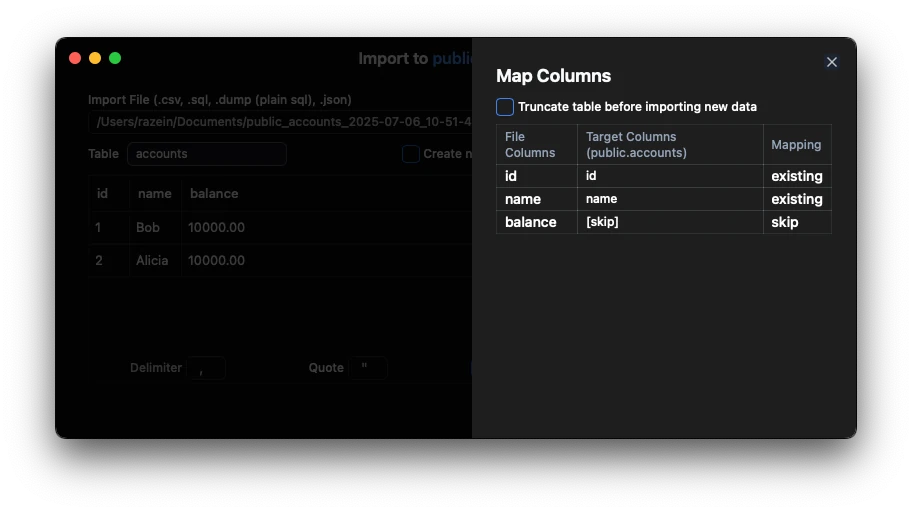
Mapping data The mapping data column screen also provides the option to truncate the table before import. When mapping data, you can choose to target specific columns or skipping them all together.
The preview of the data is shown when changing option for the csv import. Please make sure the data is shown properly by changing the various options before import to ensure a clean import.
JSON
When importing json data the application lets you preview the data being imported. It also provides a object key field to target deeply nested objects.
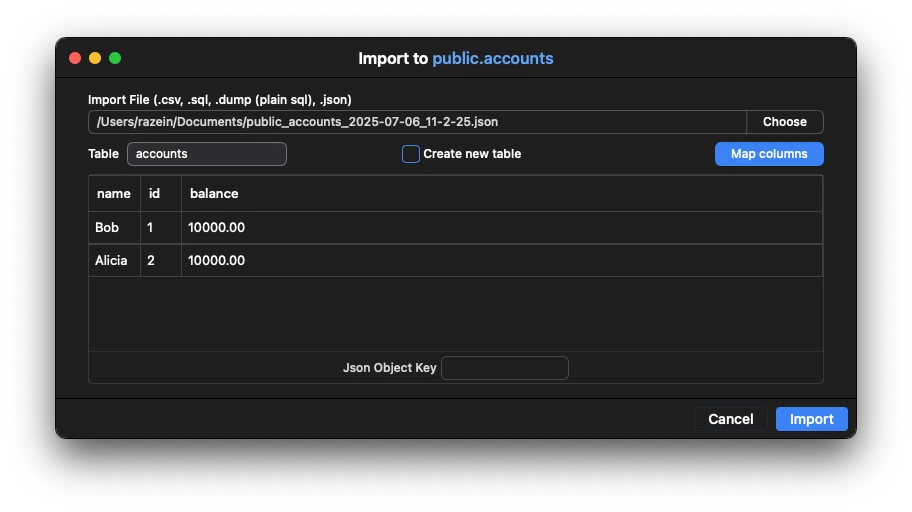
You can also choose to create a new table with the imported data rather than targeting an existing table.
Creating a new table creates a random table name (which can be edited) and gives you the option to try and parse the data to create columns data types or use all text types for data.
Mapping data The mapping data column screen also provides the option to truncate the table before import. When mapping data, you can choose to target specific columns or skipping them all together.
SQL
When a sql file is ready to be imported, preview of sql is shown in the preview field in order to verify that the correct sql is indeed being imported.
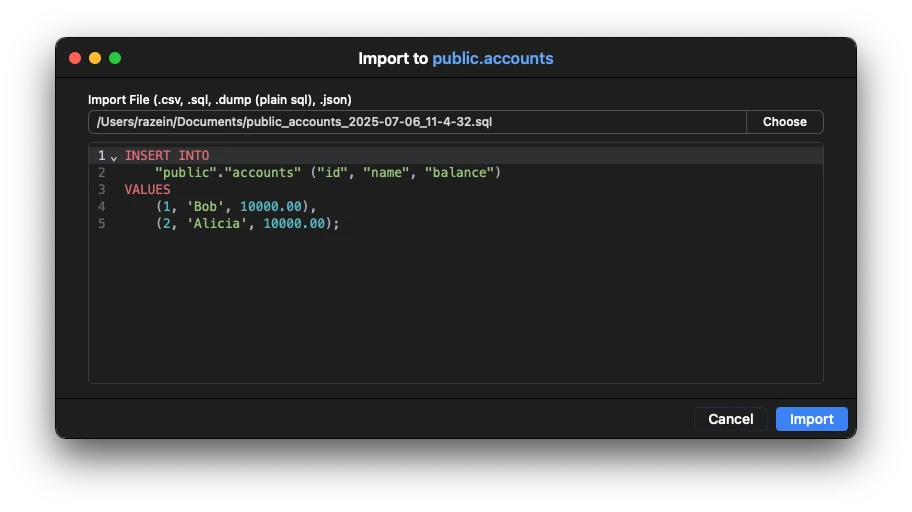
Note: Importing sql runs the sql like normal sql statements in a text editor.
Export
The application can export your data in .csv, .sql and .json.
There are many ways in which to export data.
- By using the menu bar:
File > Export - By using the context menu or the left pane.
Export data can be used to target any table.
You can also choose the specific fields to export, which are provided automatically via the dropdown menu.
All file names are by default in the format of schema_table_YYYY-MM-DD_HH-MI-SS followed by the file extension.
CSV
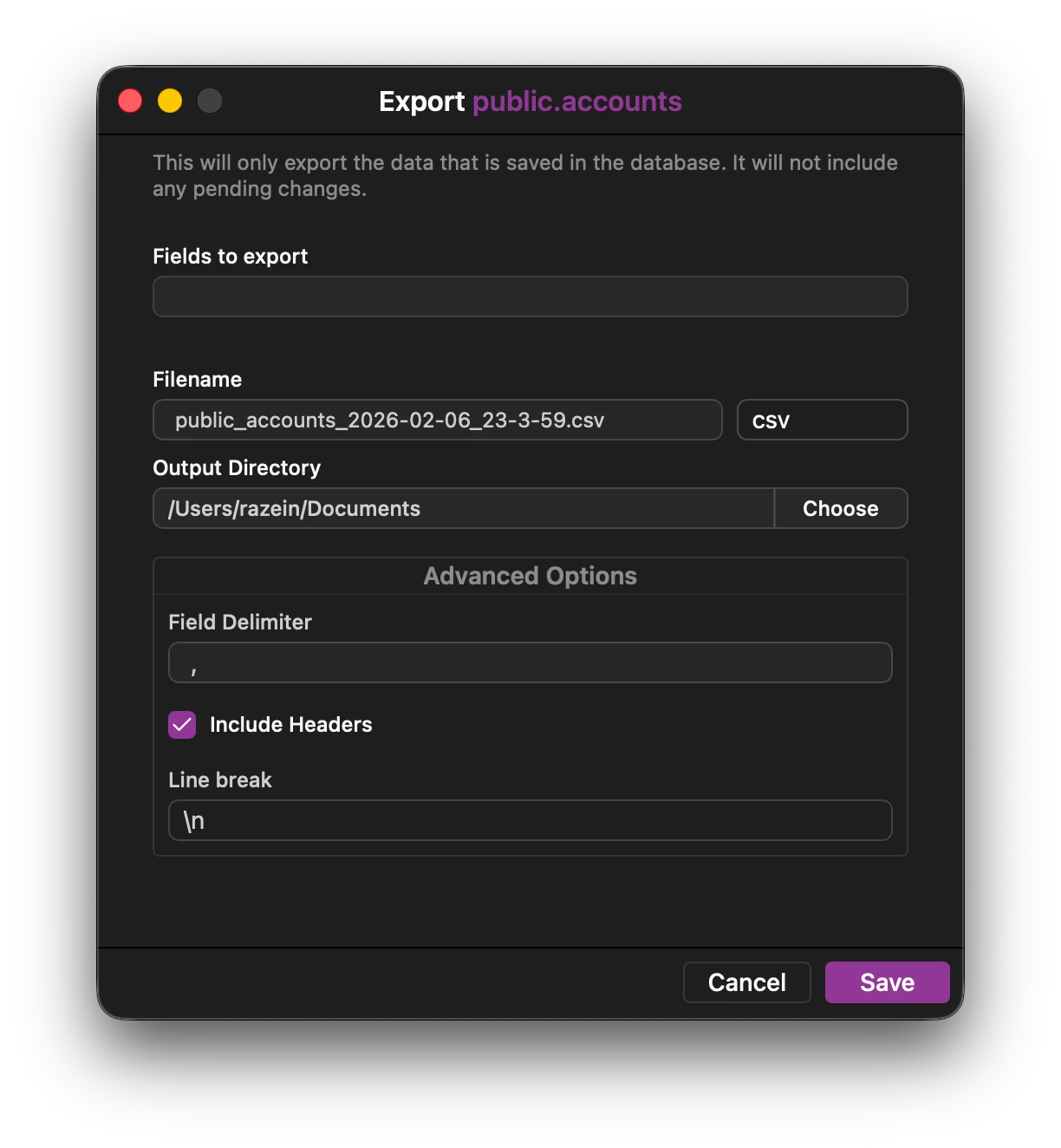
The csv export option provides some advanced options such as:
- Choosing your own field delimiter.
- Whether to include header (column names) or not?
- The line break character.
JSON
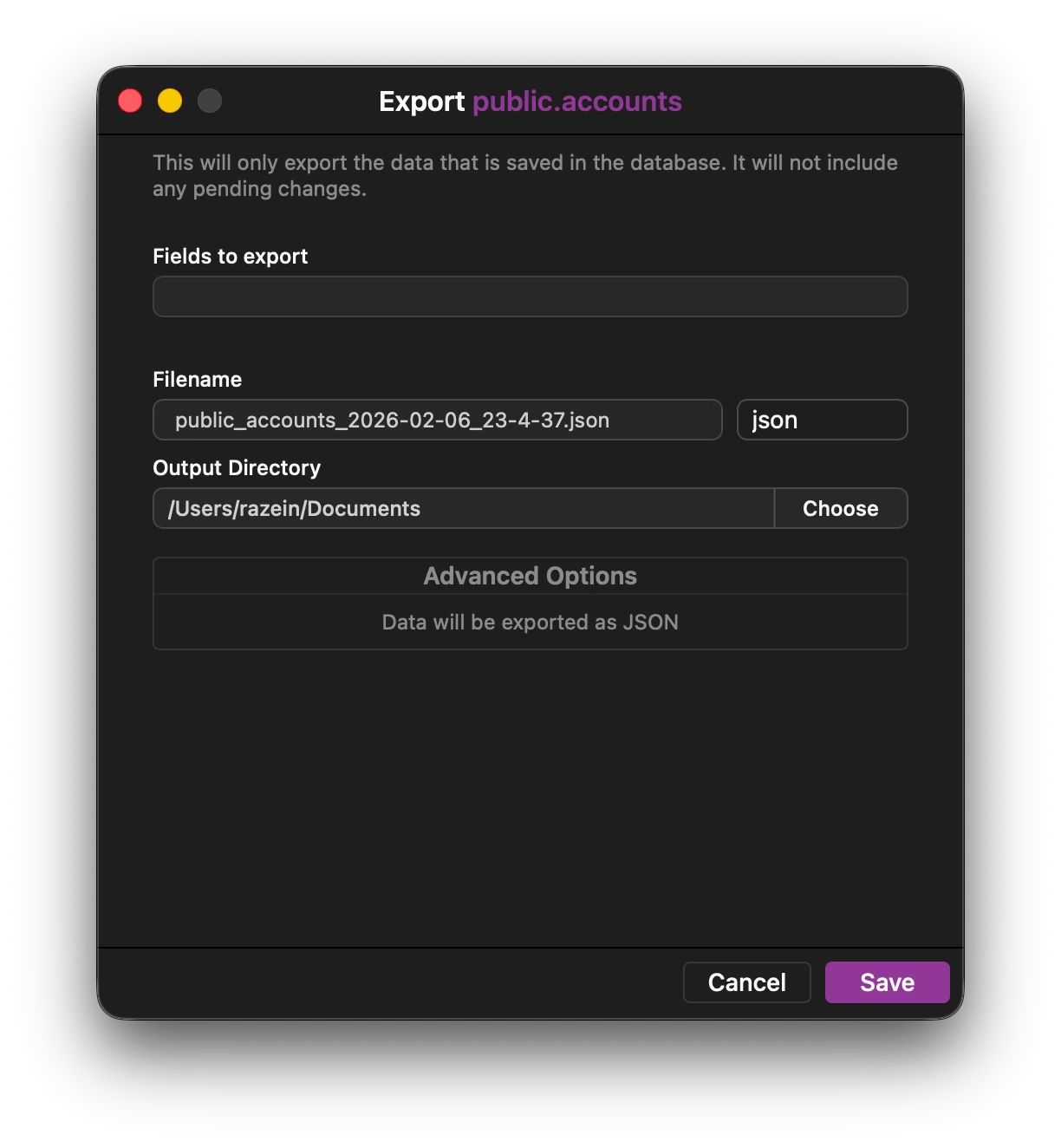
The json export option exports your data in a structured json format that can be used in any app supporting json parsing.
SQL
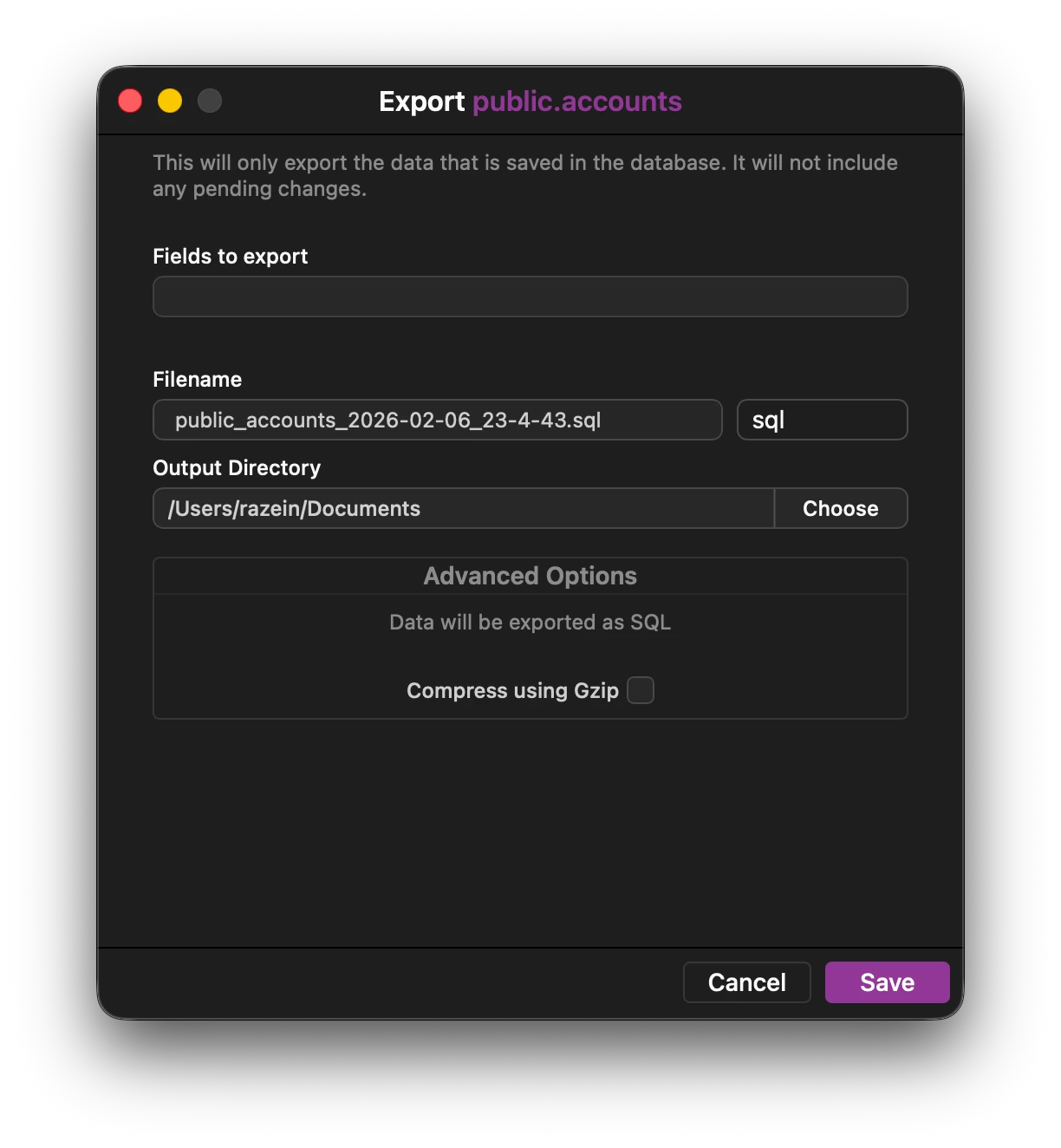
The sql export option, exports the data in the form of sql statements, which include insert statements for reconstructing data in any other database. Additionally, the data can also be compressed during export bundling a smaller footprint.