
Create a connection
To create a connection to your favorite database, you need to click on add connection on the homescreen.
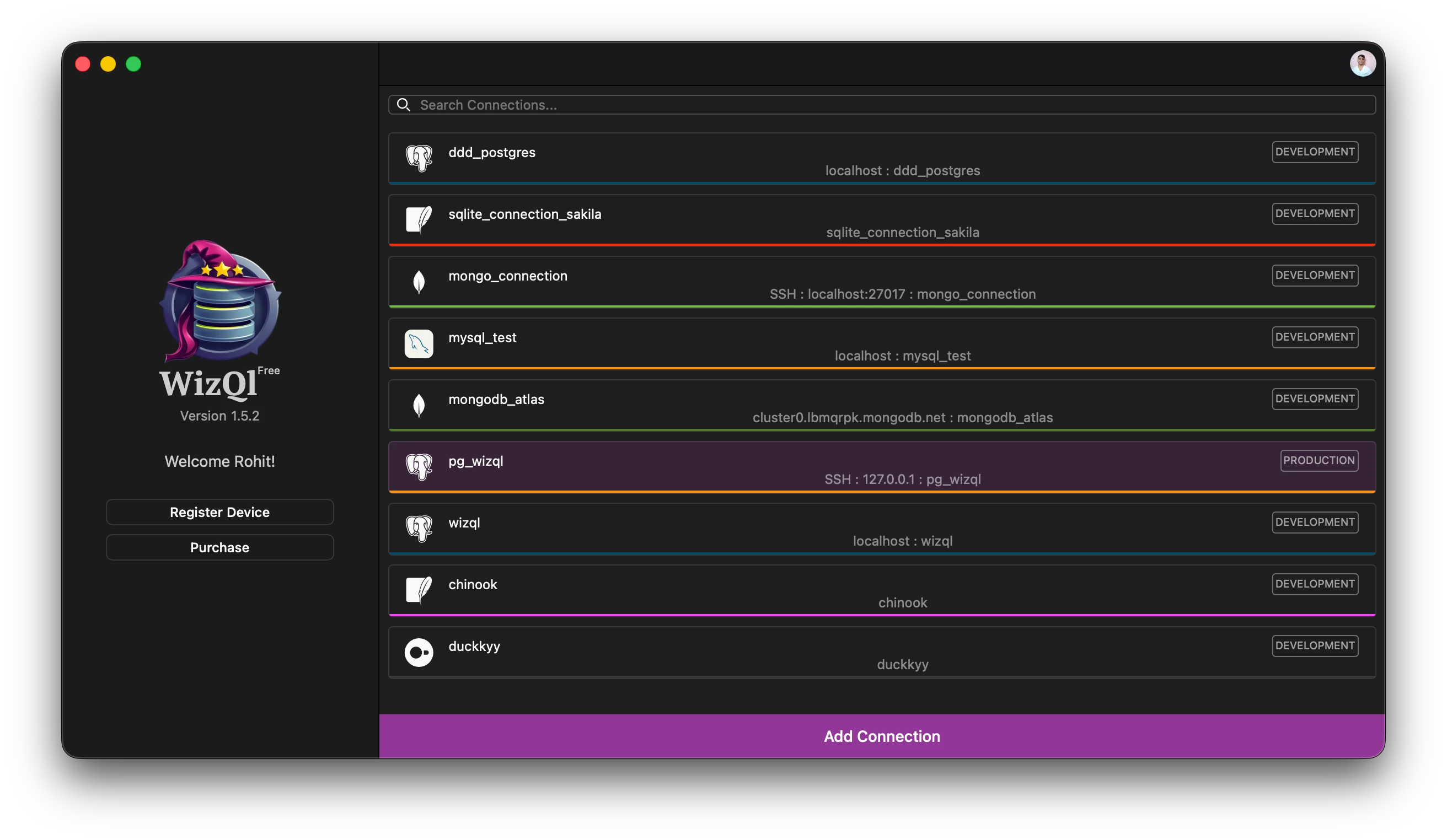
This will open up the new connection window to select the connection type. 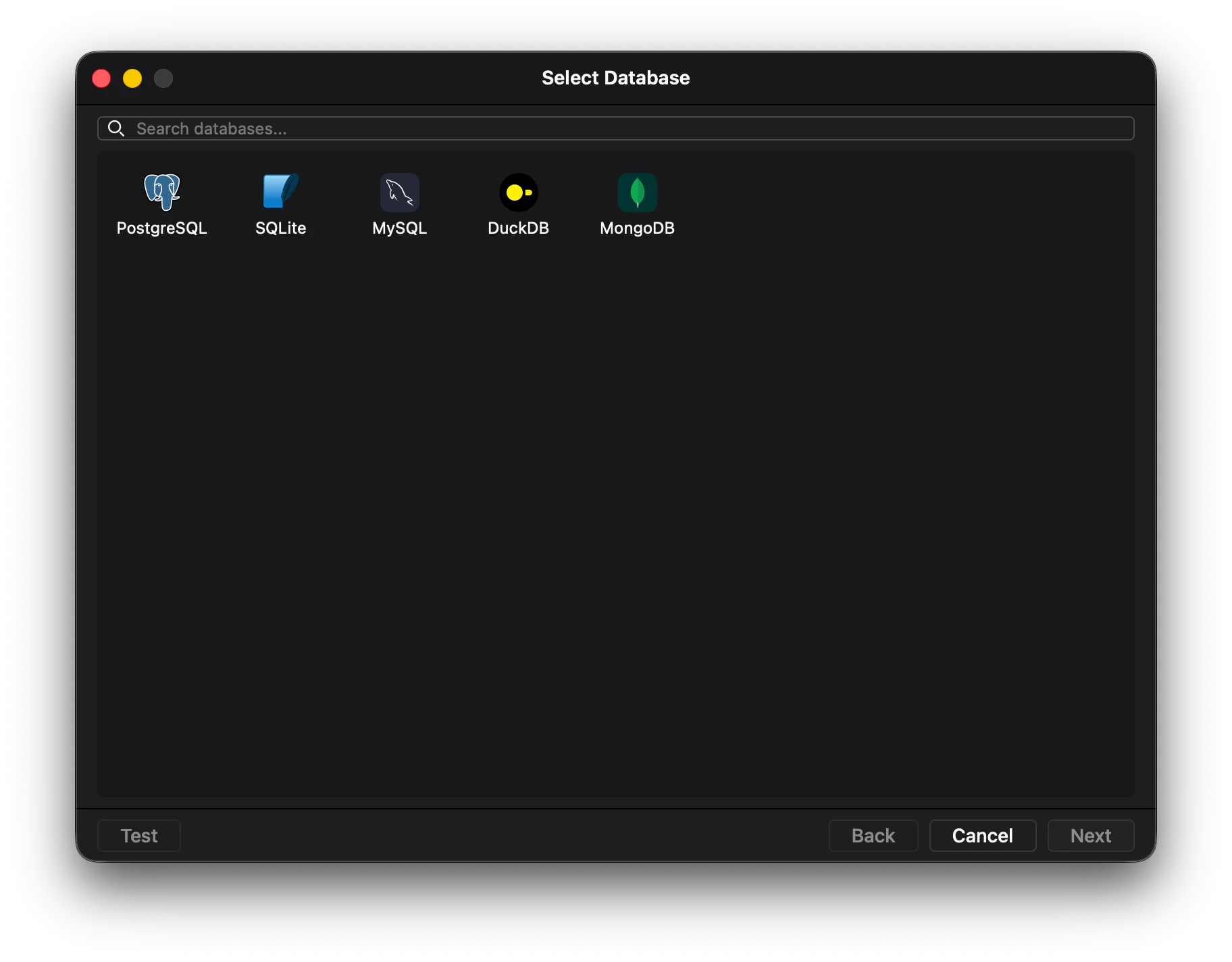
Finally the connection window with options. 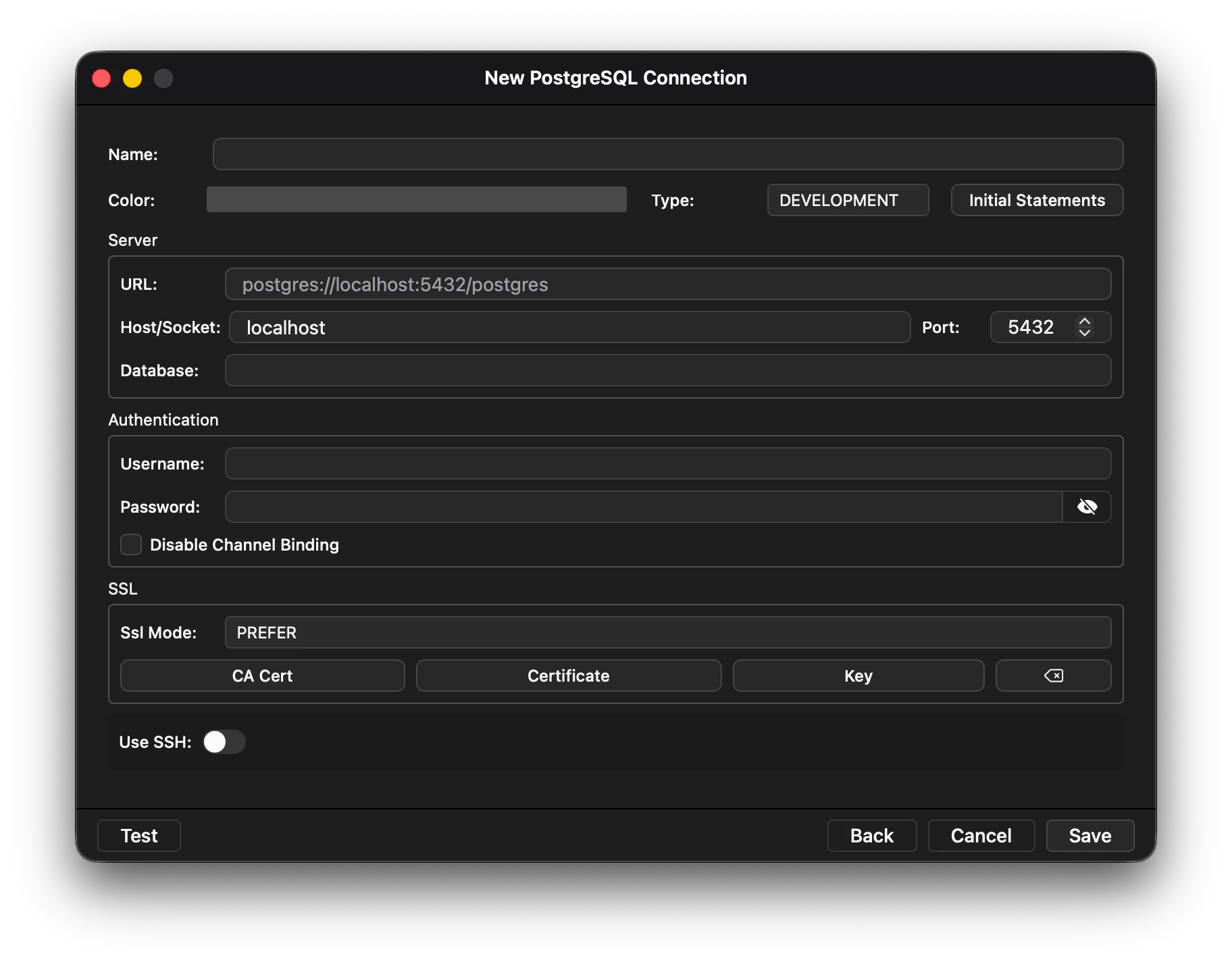
The connection window has a number of options:
- Name - User defined name of the connection.
- Color - A color to easily differentiate your connection.
- Url - It accepts a valid connection url and automatically prefills the subsequent fields on the basis of the connection.
- Host/Socket - Accepts a host IP address or a Socket address.
- Port - The port on which the database is listening.
- Database - The name of the database to connect to.
- Username - Username for authentication with the remote database.
- Password - Password of the username connecting to the database. All passwords are saved in the operating system secure storage. No data relating to connections or passwords are synced with any server.
- Disable channel binding - Enabled by default. (Channel binding provides additional protection against man-in-the-middle attacks during authentication)
- SSL Mode - Default if prefer. You can change it and supply your own certifcates if required.
- SSH Mode - If you need to connect via ssh, then you can enable this option. There are three modes available, Username and Password, Keyfile and Ssh Agent. All three modes can be configured accordingly. There is also an option to use a bastion host. It is disabled by default if value is not supplied.
Note: It is recommended to test the connection before saving it.
On clicking SAVE, the newly created connection should be available to use.